How Do I Move My Inventory Data to a New POS System?

Most of the risk in changing POS systems has nothing to do with the software. It is the data. Your item list, your costs, your barcodes, your customer records and your on-hand quantities have been building up for years, usually with a few shortcuts and typos baked in. Move that pile carelessly and your first week on a new system feels like a mess: items that ring up at the wrong price, quantities that do not match the shelf, and staff who quietly go back to writing things on paper.
The good news is that a migration is mostly clerical work, and clerical work can be planned. Here is how to think about moving inventory and customer data into a new POS system, in the order the work actually happens.
What data actually has to move, and what can you leave behind?
Start by separating the data you need to operate from the data you only need to look at.
You need to operate with:
- Items — name, SKU or item number, barcode/UPC, cost, retail price, tax setting, category, supplier.
- On-hand quantities — per location, if you have more than one store.
- Customers — name, phone, email, and any balance you owe them or they owe you.
- Outstanding gift cards — card numbers and remaining balances, including cards not tied to a customer record.
- Suppliers — name and contact details, so reordering works on day one.
You probably do not need to move:
- Years of line-item sales history. Keep the exports and reports from your old system as files. Almost nobody re-enters historical receipts into a new POS, and trying to do it usually breaks the totals your accountant already signed off on.
- Dead items. Anything you have not sold in a long time and will not reorder does not deserve a spot in the new item list. A migration is the cheapest chance you will ever get to delete it.
- Duplicate customers. Three records for the same phone number are three records that will confuse your staff later.
Write that decision down before you export anything. It stops the project from expanding while you are in the middle of it.
How do you get a clean export out of your old POS?

Ask your current provider for a full data export in CSV or Excel format, and ask for it in writing. Two things matter here: the file format and the field list. You want the raw columns, not a printed report that looks nice on paper but cannot be re-imported anywhere.
If your old system will only give you PDFs or on-screen reports, look for these options in order:
- A built-in export or backup feature, often buried in a settings or reports menu.
- A support request. Many providers will produce an export if you ask directly.
- Copying the columns out of report screens into a spreadsheet by hand. Slow, but it works for a few hundred items.
Download the export while your old account is still active. Once a subscription lapses, getting data out gets much harder. If you are coming from a specific platform, our guide on switching from Square to a cheaper POS walks through the same steps with that workflow in mind.
What should your item spreadsheet look like before you import it?
The import is easy. The cleanup is the job. Open your export and work through these passes, one column at a time, saving a copy as you go:
- Barcode and SKU columns as text. If you open the CSV in Excel or similar software, import the barcode and SKU columns as text before you edit anything. Spreadsheet programs often strip leading zeroes from UPCs and rewrite long numbers in scientific notation. Verify the exact digit strings match your shelf labels before you save.
- Duplicate barcodes. Sort by the barcode column and look for repeats. Two items sharing a barcode will ring up the wrong one forever.
- Missing barcodes. Decide now what happens to items without one: assign your own internal number, or plan to search by name at the register.
- Blank costs. Cost drives your margin reports. If a cost is missing, your profit numbers will be wrong and you will not notice for months.
- Price formatting. Strip currency symbols, thousands separators and stray spaces. Numbers should be plain numbers.
- Categories. Old systems accumulate categories like "Misc", "Misc 2" and "New Stuff". Collapse them into a structure you would actually want in a report.
- Tax settings. Confirm which items are taxable and which are exempt. This is the error customers notice first.
- Units. Items sold by weight or length need to be flagged as such, not treated as each.
PHP Point Of Sale supports importing items and customers from a CSV spreadsheet, so the practical goal is one tidy file per data type, with column headings that match what the import expects. Do a test import with a small batch first — twenty or thirty items — then check them at the register before you load the rest.
How do you handle multiple locations and per-location pricing?
If you run more than one store, quantities and prices are the two fields that need extra thought.
Quantities are location-specific by definition. A single "on hand" column from your old system is not enough; you need to know what is at each store, and ideally what is in the back room or a warehouse. If your old export lumps everything together, this is the moment to split it, because you will be counting stock anyway.
Pricing is a business decision, not a data one. Decide whether your locations share one price list or set their own. Airport stores, mall stores and outlet locations often need different retail prices for the same SKU while sharing cost and supplier data. Set that structure up before the import rather than fixing hundreds of items afterwards. Our overview of the best POS for multi-location retail stores covers what to look for in that setup.
How do you count stock without closing the shop?

No import is accurate unless the quantities match reality, and the only way to know is to count. You do not need to shut the doors to do it.
Count in zones, not all at once. Pick a shelf or section, count it, load those quantities, and move on. Do the counting outside trading hours where you can, or during your quietest stretch, and freeze receiving in that zone while you work — no putting away deliveries mid-count.
That freeze only protects the count while you are on the shelf. If the old POS keeps ringing sales, returns, and receipts after you load a zone, every quantity you entered earlier drifts out of date. Before cutover, either record every inventory change since each zone was counted and apply those deltas in the new system, or run a final reconciliation pass across the whole store immediately before you switch. Skipping that step is how migrations end up with accurate counts in the back room and wrong ones at the register.
High-value and high-theft items deserve a careful count with two people. Low-value consumables can be estimated and corrected later without much harm. If you have never done a full count, expect the first one to surface surprises: shrink you did not know about, items you thought you had, and items still on the shelf that the old system said were gone.
What does a realistic order of operations look like?
Sequence matters more than speed. A workable order:
- Decide what moves and what does not.
- Export everything from the old system while the account is live.
- Clean the item file. Clean the customer file separately.
- Import a small test batch. Ring up test sales. Check prices, tax and receipts.
- Import the full item, customer, supplier and gift card lists.
- Set up locations, price levels, tax rules, users and permissions.
- Count stock and load quantities, zone by zone.
- Reconcile inventory changes since each zone count, or run a final store-wide count right before cutover.
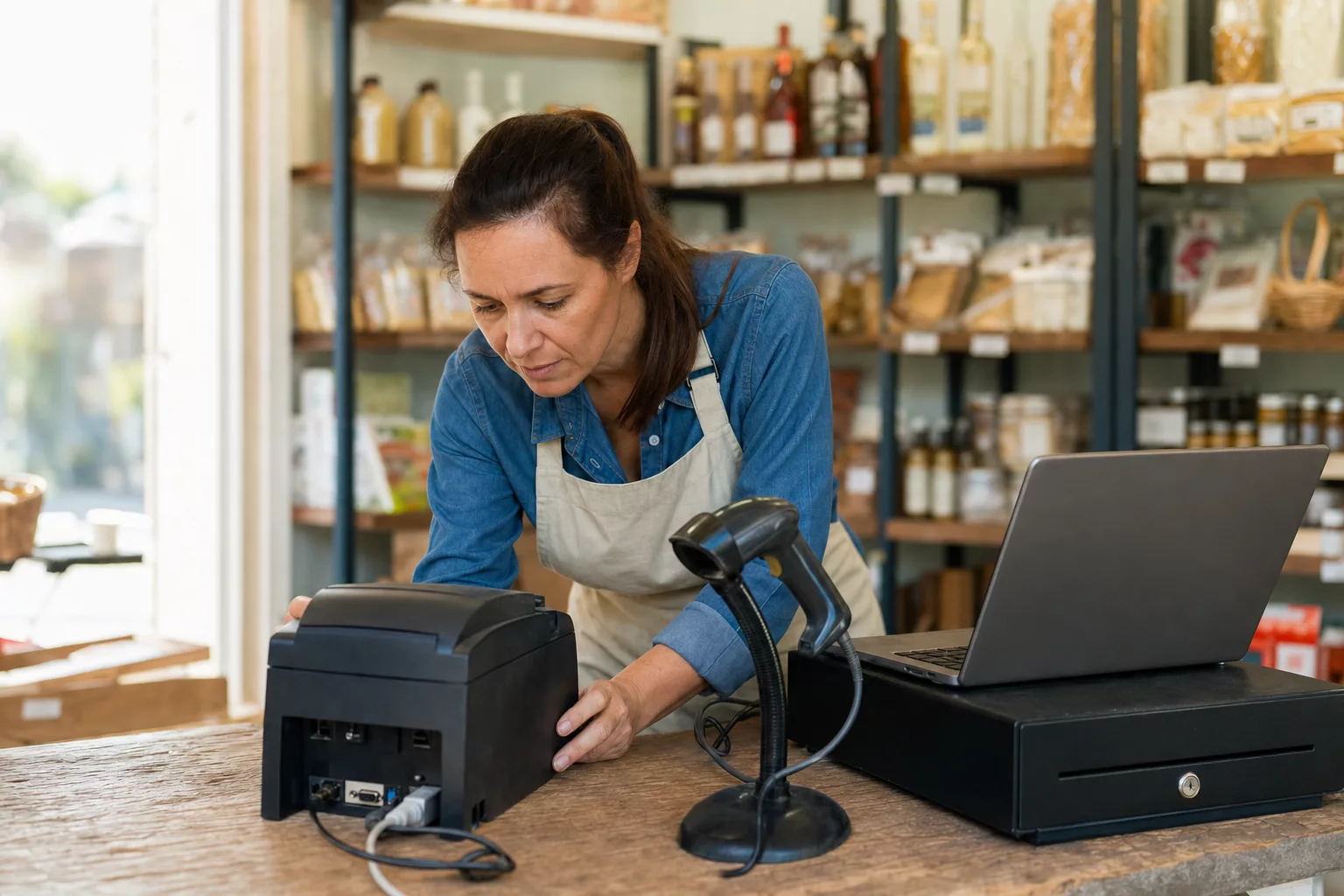
- Configure and test hardware — receipt printer, cash drawer, scanner, card reader.
- Train staff on the new register flow before go-live, not during it. Test gift card redemption with a dedicated test card, or void the test sale and verify the balance was restored.
- Re-export gift card and customer balances from the old POS and import the final deltas immediately before cutover. While the old system stays live, cards sold or redeemed and customer balances changed after your first import will otherwise be missing or stale in the new database.
- Run the new system as the system of record. Keep the old one read-only for reference.
Step nine is where people lose a weekend they did not budget for. Check compatibility early using our guide on whether your existing POS hardware will work.
FAQ
Can I import my items from a spreadsheet?
Yes. PHP Point Of Sale supports importing items and customers from a CSV file, which is what most old systems can export. Match your column headings to the import format, run a small test batch, verify it at the register, then import the rest.
Do I have to move my sales history?
Usually not. Keep exported reports and files from your old system for accounting and warranty lookups, and start the new system fresh. Re-creating old transactions rarely produces numbers you can trust, and it takes far longer than it looks.
What happens to barcode labels I have already printed?
If the barcode value in your import matches the label on the shelf, existing labels keep working. That is why the barcode column deserves the most careful cleanup. Reprint only for items where the barcode was missing, duplicated or changed.
What about outstanding gift card balances?
Export every card with a remaining balance from your old system, not only cards linked to a customer profile. Import those balances into the new POS, then run a final balance export from the old system right before cutover so cards sold or redeemed during staging do not go missing. For redemption testing, use a dedicated test card with a small balance, or void the test sale and verify the restored balance before go-live. Anonymous gift cards are a liability on your books; if they do not make the import, cardholders cannot spend them after cutover.
Should I migrate at a particular point in the month?
Pick a quiet trading period and a clean accounting break, such as the start of a new reporting period. Avoid your busiest season entirely. Counting stock and training staff both need attention that a busy sales floor will not give you.
Do I need to close the store to switch systems?
No, if you stage it. Import and configure while the old system is still ringing sales, count in zones after hours, then cut over on a slow day with both systems available. Keep read-only access to the old system for a while so you can answer questions about past sales.