Will My Existing POS Hardware Work With a New POS System?
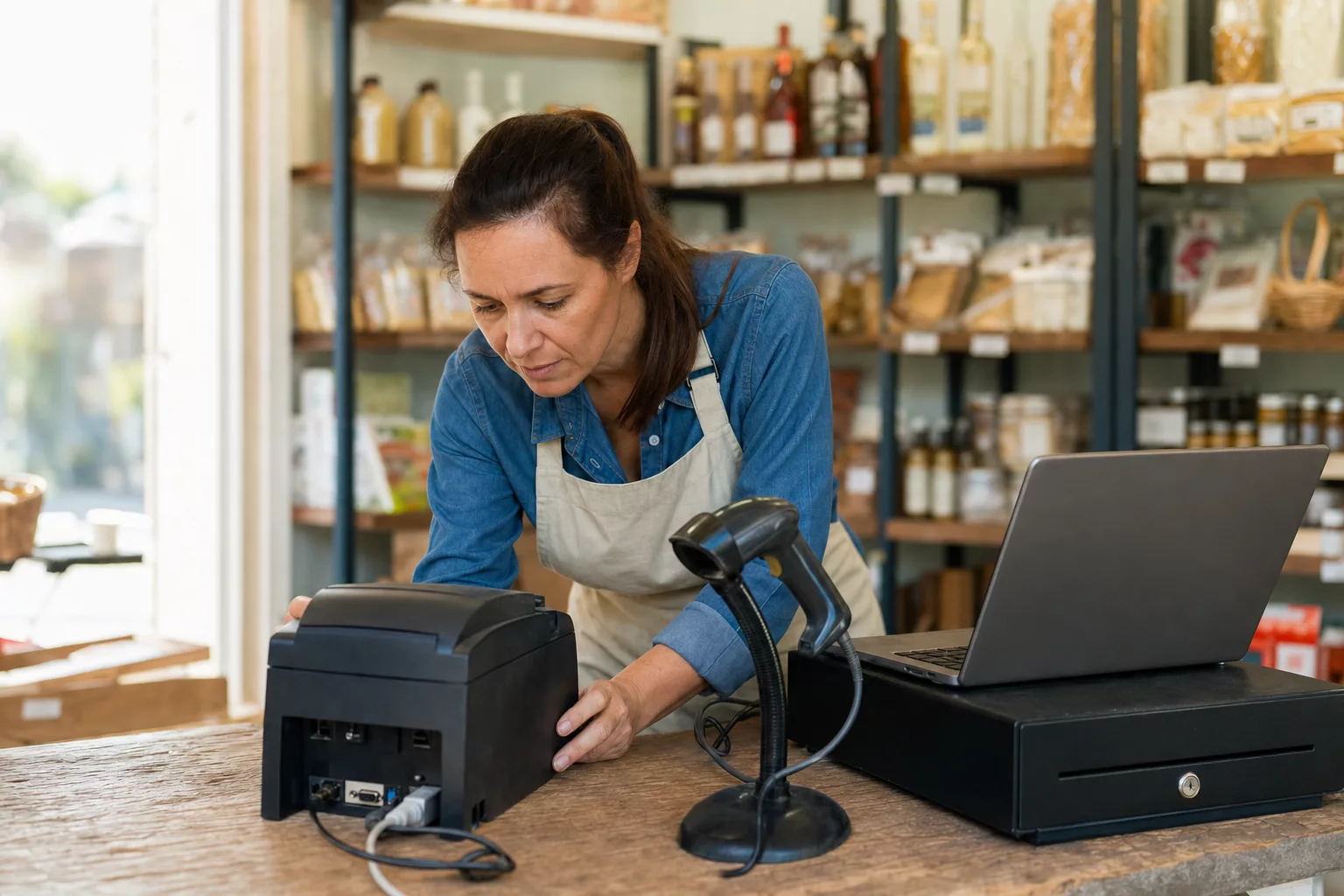
Most retailers who look at new POS software are not starting from an empty counter. There is already a receipt printer bolted to the shelf, a cash drawer under it, a scanner on a cable, maybe a label printer in the back room and a customer display facing the door. The software subscription is the number everyone compares, but the hardware is where a switch quietly gets expensive. So before you sign up for anything, it is worth working out exactly what you own, what plugs into what, and which of those pieces will still be useful next month.
The short answer is that a lot of standard retail hardware carries over, and a few specific categories almost never do. The difference comes down to whether the device speaks a common language or whether it was built to work with one company's software only.
What hardware are you actually trying to keep?
Start by writing down every physical device involved in a sale. For most single-counter shops the list looks like this:
- A computer, tablet or all-in-one terminal
- A receipt printer
- A cash drawer
- A barcode scanner
- A card reader or payment terminal
- A label printer for shelf tags and product barcodes
- Sometimes a scale, a customer-facing display, or a handheld for stock counts
For each one, note the brand, the model number and how it connects: USB, Ethernet, Bluetooth, serial, or a cable that runs into the back of the receipt printer. The model number matters more than the brand. Two printers from the same manufacturer can behave very differently.
If you have more than one location, do this per store. It is common to find that two shops you bought at different times are running two different printer generations. That affects how you plan the rollout, which is worth reading alongside our notes on running multi-location retail on one POS.
Which pieces usually carry over, and which usually don't?
Barcode scanners are the easiest win. A USB scanner normally acts as a keyboard: you scan, and the characters appear wherever the cursor is. That means it works with almost any POS software without a driver, as long as the scanner is configured to send an Enter keystroke at the end. Bluetooth scanners behave the same way once paired.
Receipt printers are usually reusable if they are a standard thermal model with a USB, Ethernet or serial connection. Ethernet printers are often the most flexible, because they sit on the network with their own IP address rather than being tied to one machine.
Cash drawers are the most reliable of all. Most drawers are dumb boxes with a solenoid, triggered by a cable plugged into the printer's DK port. If the printer works and the port is there, the drawer pops.
What usually does not carry over:
- Card readers and payment terminals tied to a processor. A reader supplied by one payment company is normally locked to that company. If you change processors, you change the reader. This is the single most common surprise for shops moving away from an all-in-one provider.
- Proprietary all-in-one terminals. Some sealed countertop terminals only run the software their maker ships. The screen, printer and drawer are one unit, so you cannot keep half of it.
- Old serial devices with no adapter path. Serial hardware can often be made to work, but only if the new computer has a serial port or a reliable USB-to-serial adapter.
- Very old label printers where drivers were never updated for current operating systems.
If you are coming from a system with its own branded hardware, plan on replacing the payment side and keeping the rest. Our guide to switching from Square to a cheaper POS walks through that kind of move in more detail.
How do you tell what interface your hardware uses?

Look at the label on the underside or the back of each device. You are looking for a model number and, on printers, a suffix that tells you the interface. Then check the cables physically. A rectangular USB-B port, an Ethernet jack, and a 9-pin serial connector look nothing like each other, and a photo of the back panel is enough for a support team to identify.
For printers, note whether there is a DK or DRW port for the cash drawer. If your drawer cable currently runs into the printer, that port is in use and you want to keep it that way.
For scanners, find the manual online and check whether it is set to keyboard-wedge mode. Most are by default. If a scanner is in a mode meant for a specific application, a configuration barcode in the manual will switch it back.
What changes when the POS runs in a browser?
Browser-based POS software changes the hardware picture in a useful way. Instead of installing software on one specific machine, you open the POS in a browser, which means the computer itself matters less. An older Windows PC, a Mac, or a tablet can all get you to the same screen.
PHP Point Of Sale runs in the browser, so the register is whatever device you already have that can load a web page reliably. Printing and cash drawer control still need a small piece of local setup, because a web page cannot talk directly to a USB port on its own — so plan on a short configuration step per station rather than a full software install per machine.
The practical benefit is that you are not buying terminals to match the software. You are buying, at most, the one or two devices that genuinely cannot be reused. If keeping the total cost down is the point of the exercise, that is where the saving lives — along with checking whether your new POS charges per register or per employee. PHP Point Of Sale does not, which means adding a second lane at Christmas is a hardware question, not a licensing one. For a broader cost breakdown, see our look at the cheapest POS options for independent retailers.
How do you test old hardware before you switch?

Do not wait until the morning you go live. Set up one test station on the counter next to your current one, or in the back room, and work through this order:
- Connect the computer or tablet and load the POS. Confirm it stays connected on your shop network.
- Test the scanner into any text field. If the barcode appears and the cursor jumps to the next line, it works.
- Print a test receipt. Check the width, the cut, and whether text is cropped at the edges.
- Trigger the drawer from a test sale. If the receipt prints but the drawer stays shut, the problem is almost always the cable or the printer's drawer setting, not the POS.
- Print a product label and scan it back in. This catches barcode symbology and size problems early.
- Run a full sale end to end, including a card payment on your new reader and a refund.
Keep a note of anything that needed adjusting. If you have several stores, that note becomes your setup script for the rest of them.
When is replacing a device the cheaper choice?
Sometimes the honest answer is to retire something. Consider replacing a device when it needs a part that is no longer made, when it only works on an operating system you are being pushed off, when it has become the thing your staff complain about every shift, or when one printer failing would stop the till entirely and you have no spare.
One pattern worth copying: standardise. If you are buying anything new, buy the same model for every station and every store. Interchangeable spares mean a dead printer is a two-minute swap instead of a day of improvising, and your setup notes stay valid.
What should you ask a POS vendor before you buy?
Bring your hardware list to the conversation and ask direct questions:
- Which of these specific models do you support, by model number?
- What local setup is needed for printing and cash drawer control, and on which operating systems?
- Can I keep my current payment processor, or do I have to use yours?
- Is there any charge per register, per station, or per employee?
- If I add a second till for a busy season, what does that involve?
- Can I import my existing product list, and in what file format?
The answers tell you the real cost of switching. Software you can trial in an afternoon. Hardware you live with for years.
FAQ
Can I use my existing barcode scanner with a new POS?
Almost certainly, if it is a USB or Bluetooth scanner in keyboard mode. Test it by scanning into a blank text field. If the digits appear and the cursor moves to a new line, the POS will read it the same way.
Do I need a new receipt printer if I change POS software?
Not usually. Standard thermal printers with USB, Ethernet or serial connections are widely supported. The exceptions are printers built into sealed proprietary terminals, and very old models without current drivers. Check the model number with the vendor before you assume either way.
Will my cash drawer still open?
If the drawer is connected through the receipt printer's drawer port, it opens when the printer does. Keep the drawer, keep the cable, and confirm the printer's drawer-kick setting is enabled during testing.
Can I keep my card reader when I switch POS systems?
Usually not. Readers issued by a payment provider are generally tied to that provider. If you are changing processors, budget for new payment hardware and treat the rest of your equipment separately.
Can I run the POS on a tablet I already own?
Often yes, for browser-based software, as long as the tablet loads the POS reliably on your shop network. Printing and drawer control need a local setup step, so test that combination on the actual tablet before you commit to it as a register.