
Retail POS features for inventory, checkout, and reporting
PHP Point Of Sale is retail POS software with inventory, checkout, customers, ecommerce, and reporting in one system. Unlimited registers, employees, and items are included on every plan — start a free trial or book a demo.
What it looks like in the store
Two screens from a working store, at the size you would actually use them.
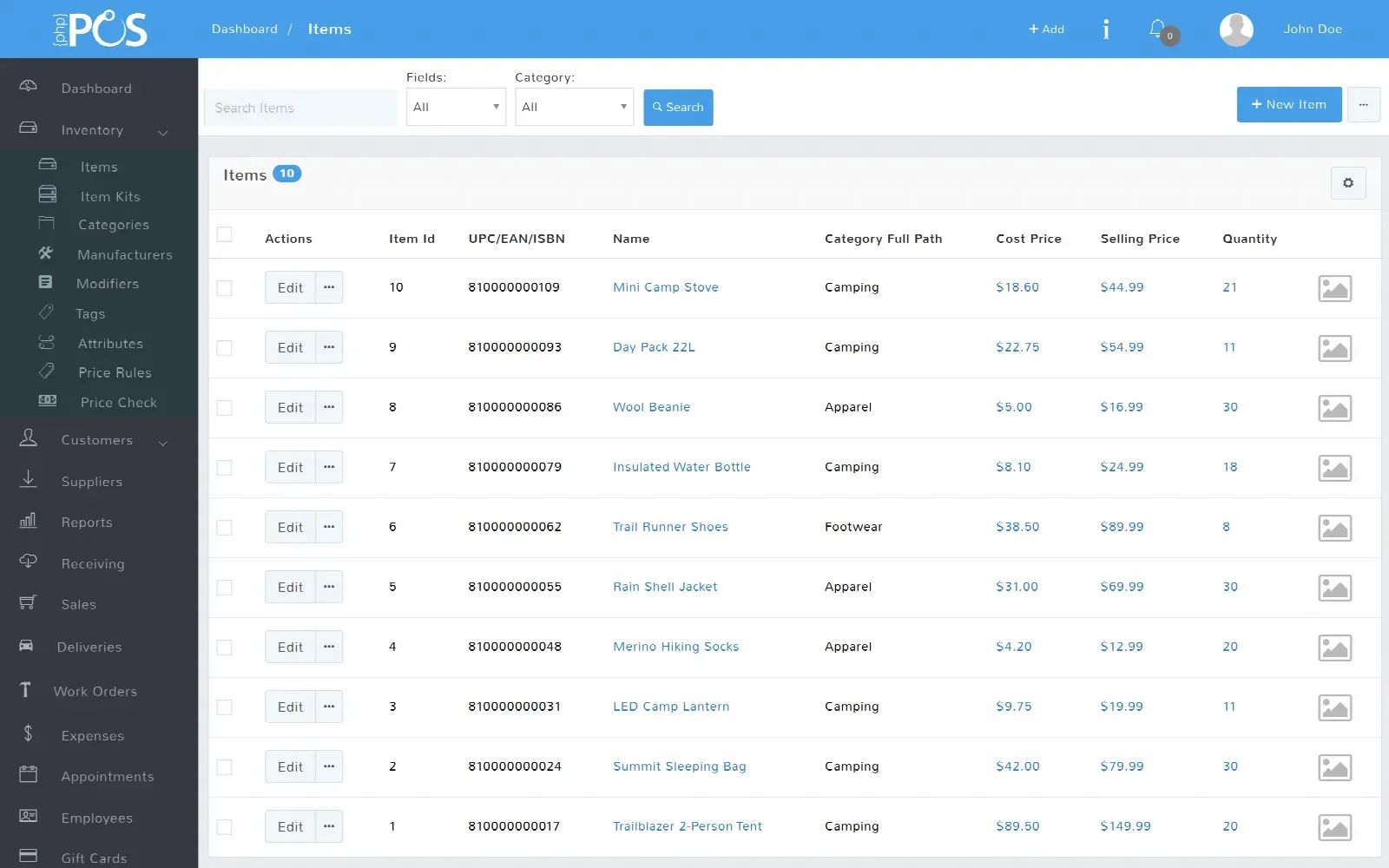
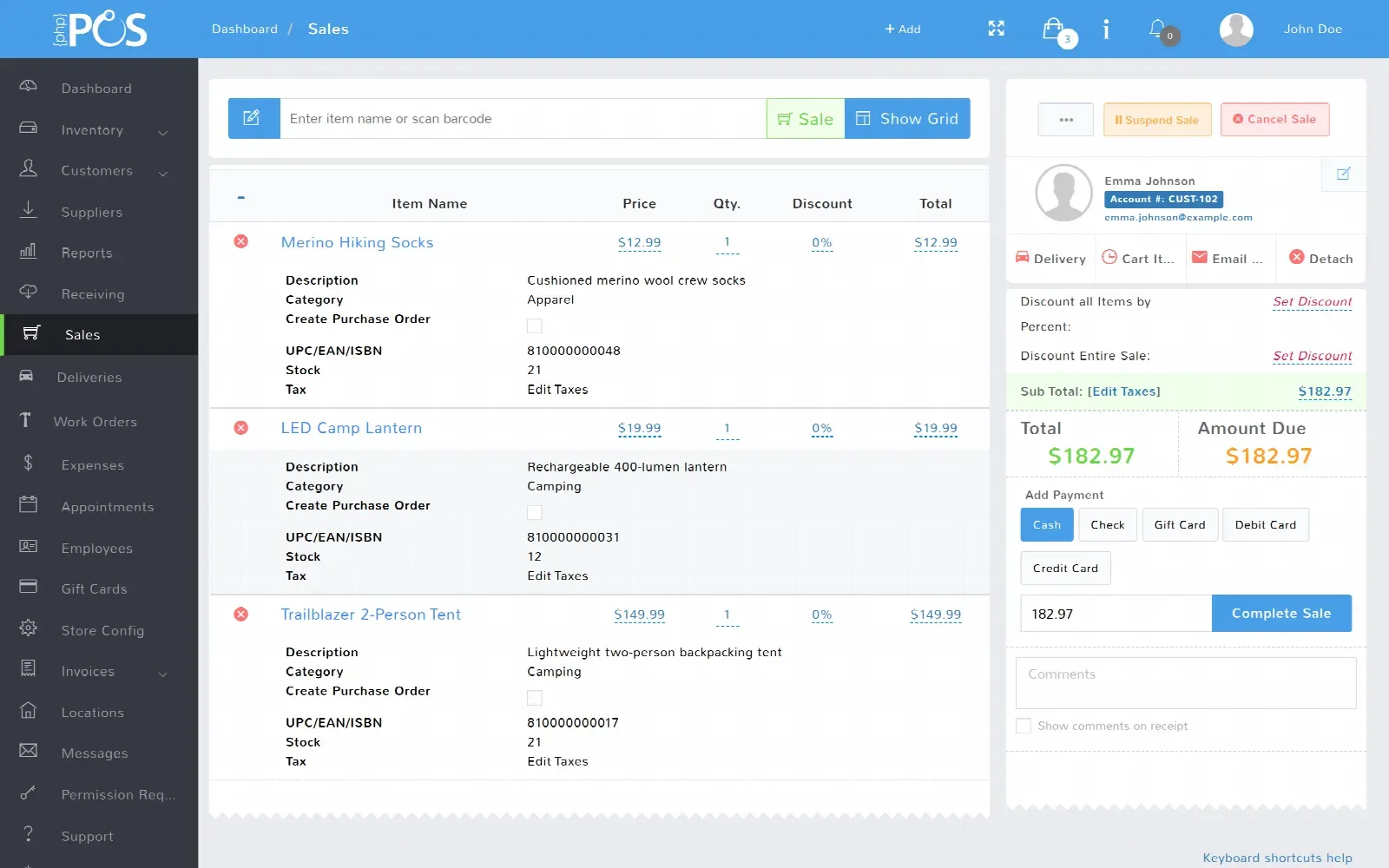
Complete Retail POS Overview

Inventory and purchasing
- Inventory managementTrack quantities, costs, categories, suppliers, reorder points, and stock activity.
- Item variationsOrganize size, color, style, and other item combinations.
- Purchase ordersCreate orders, receive products, and update inventory and costs.
- Stock transfersMove inventory between locations with a clear audit trail.
- Barcodes and labelsGenerate and print scannable labels for products, bins, and shelves.
- Serial numbersTrack individually identified products, devices, and high-value inventory.
- Item kits and seriesSell bundles and related items while keeping components organized.
- Import and exportMove large item, customer, supplier, and inventory datasets efficiently.
- Stock and expiration alertsGet low-stock and expiring-batch warnings inside the POS, per location and per receiving batch.
- WooCommerce catalog importImport a WooCommerce export through the item import wizard, including parent items, attribute columns, and variation images.
Retail Inventory Management

Product Catalog, Variations & Pricing

Purchase Orders & Receiving

Transfer Inventory Between Stores

Barcode & Label Printing

Checkout and payments
- Flexible payment optionsAccept supported integrated payments, split tenders, gift cards, store accounts, and more.
- Layaways and depositsTake partial payments and maintain a clear customer balance.
- Cash managementTrack register openings, closings, cash additions, removals, and discrepancies.
- Coupons and promotionsApply discounts and promotions while preserving reporting detail.
- Currency exchangeSupport configured currencies and exchange workflows.
- Digital and custom receiptsEmail or text receipts and tailor their content to your brand.
- Customer-facing displayGive customers a clear view of items, totals, and checkout information.
- Offline modeKeep supported selling workflows available during temporary connection issues.
- Saved cards on fileOn processors that support it, keep several cards per customer with one default, and choose or skip a saved card at checkout.
- Barcode and driver's license scanningA keyboard-wedge scanner works with no driver when it sends the expected Enter suffix. With a 2D area imager, the register also reads QR code labels and the barcode on the back of a driver's license, filling the customer form or satisfying an age check.
Fast Retail Checkout in PHP Point Of Sale

Cash Management & Register Closeout

Gift Cards, Promotions & Price Rules

Returns, Exchanges & Store Credit

Counter orders and the kitchen
- Touch screen registerA full-screen, touch-first sale screen for tablets and touch terminals — a category grid beside a cart. Set it per register under Locations → edit the location → Registers & Terminals → POS UI, with nothing to install.
- Kitchen display systemSuspending a sale is what sends it to a kitchen screen. Cooks move each ticket through the four fixed statuses — New, Preparing, Ready and Delivered — a whole order at a time, and delivered orders clear the board on their own. There is no coursing, holding, or firing.
- Priced modifiersNamed groups of priced choices, built under Inventory → Modifiers and attached to items and item kits. The cashier ticks any number of them at the register; each one adds its price to the line, prints on the receipt, and shows on the kitchen card. Zero-price choices still print, which is how "no onions" reaches the cook.
- Combos as item kitsBundle items, specific variations, or other kits under one selling price and one barcode. Selling the kit deducts every component from stock at that location, nested kits included.
- Sale types you name yourselfE-Commerce ships with the product; Sale, Layaway and Estimate are system types you never see in the list. Every other type is yours, added under Config → Suspended Sales/Layaways. The type tags the kitchen card, filters the board, and shows as a column in the day's sales.
- Order timers and board filtersEvery ticket shows how long it has been open, turning amber and then red against warning and danger thresholds you set in minutes, per screen. Filter a screen to one item category or one sale type — the filter narrows which orders show, not which lines inside them.
- Run the board on more than one screenThe board runs in a browser, so any tablet or monitor in the kitchen can show it. Each screen keeps its own filters, sounds, refresh interval, and each location gets its own board.
- Recall the ticket and take paymentThe counter finds the suspended sale by list or search and recalls it to take payment. A deposit can be added before the ticket is suspended, and a ticket can take more than one payment — two cards, or cash plus a gift card. One order is always one ticket; it cannot be broken into a check per person.
- A different receipt layout per sale typeOn plans that include the Receipt Designer, a saved template routes by location and by sale type, so a takeout receipt prints a different layout from a walk-in one. The kitchen works from the screen, not a prep printer.
- Tips on the registers that need themTurn tips on under Config → Sales, then per register under Locations → Registers & Terminals, so the coffee bar prompts and the retail counter does not. Reports → Tips totals them by employee. Integrated tip prompts depend on your processor.
- Counter service, not table serviceOne cashier rings the whole order, suspends it to send it to the kitchen, and recalls it to take payment. There is no floor plan, no seat numbers, and no separate checks per person.
Kitchen Display System in PHP Point Of Sale

Customers and marketing
- Customer profilesKeep contact details, notes, purchase history, balances, and preferences together.
- Loyalty programsReward repeat customers with points and configured loyalty rules.
- Gift cardsSell and redeem store value across supported locations.
- Store accountsTrack customer credit, payments, and account balances.
- Tier pricingSet customer or quantity-based pricing for retail and wholesale scenarios.
- AppointmentsTrack scheduled customer work and service activity.
- Email, SMS, and reviewsFollow up with customers and support review-generation workflows.
- Delivery managementCapture delivery details and keep fulfillment connected to the sale.
Customer Loyalty & Purchase History

Store Accounts, Invoices & Customer Balances

Work Orders for Repair & Specialty Retail

Reporting and team operations
- Retail reportsAnalyze sales, profits, inventory, taxes, payments, employees, and locations.
- Custom viewsOrganize operational data around the fields and filters your team uses.
- Commission trackingMeasure configured employee or salesperson commissions.
- Employee time clockRecord time activity alongside POS operations.
- Internal messagingKeep store communication accessible to the team.
- Custom fieldsCapture the business-specific details that standard POS records miss.
- Multiple locationsShare data and reporting while controlling location-specific inventory and activity.
- Multiple languagesSupport teams and interfaces across configured languages.
- Field configurationsHide or require the fields on your main forms, and choose and reorder the sale and receiving grid columns.
- Foot traffic and conversionConnect a Dor people counter to add traffic, conversion rate, and ATV to sales reports.
Retail Sales & Profit Reporting

Employee Permissions & Commission

Multiple Retail Locations from One POS

Integrations and intelligence
- Shopify integrationSynchronize configured ecommerce products and inventory with Shopify.
- WooCommerce integrationKeep WooCommerce and store inventory connected.
- Accounting integrationsConnect retail data to QuickBooks Online directly, or to Xero and other accounting platforms through Shogo.
- Developer APIBuild custom integrations using documented POS endpoints.
- ZapierAutomate workflows between PHP POS and other business apps.
- Cross-platform accessUse the web POS across computers, tablets, and phones.
- POS Genie AIAsk plain-language questions about sales, inventory, and trends.
- Label and receipt designersTailor retail output without rebuilding the POS interface.
- Office 365 emailSend system email through your own Microsoft 365 account with the built-in Office 365 SMTP preset, or connect Gmail with OAuth instead of a password.
Connect Shopify or WooCommerce to Your POS

Frequently Asked Questions
What features are included in PHP Point Of Sale?
Inventory and purchasing, checkout and payments, customer loyalty, reporting, ecommerce integrations, and kitchen or counter tools. This page lists every group so you can see what is included before a trial.
Are registers, employees, and items unlimited?
Yes. PHP Point Of Sale is priced per location, not per register or employee. Unlimited registers, employees, and items are included on every plan.
Does PHP POS work if the internet drops?
Offline mode is included on cloud builds, so registers can keep selling when the connection drops.
Which ecommerce platforms does PHP POS integrate with?
PHP POS syncs with Shopify and WooCommerce. Accounting connectors include QuickBooks Online directly, plus Xero and others through Shogo.
How do I try PHP POS features before I buy?
Start a free trial — no credit card required — or book a live demo and walk through the inventory, checkout, or reporting workflow you actually use.
Want to see your workflow, not a generic checklist?
Book a demo and walk through the inventory, checkout, integration, or reporting scenario you actually use.