01
Hide what you never use
A form with eight fields instead of forty is quicker to fill in and much harder to get wrong.

Hide the fields you never use and require the ones you cannot do without, on your item, customer, supplier, expense and appointment forms — and choose and reorder the columns on the sale and receiving grids. No customization project required.
Configuration, not code. You change it in the POS and it applies to everybody.
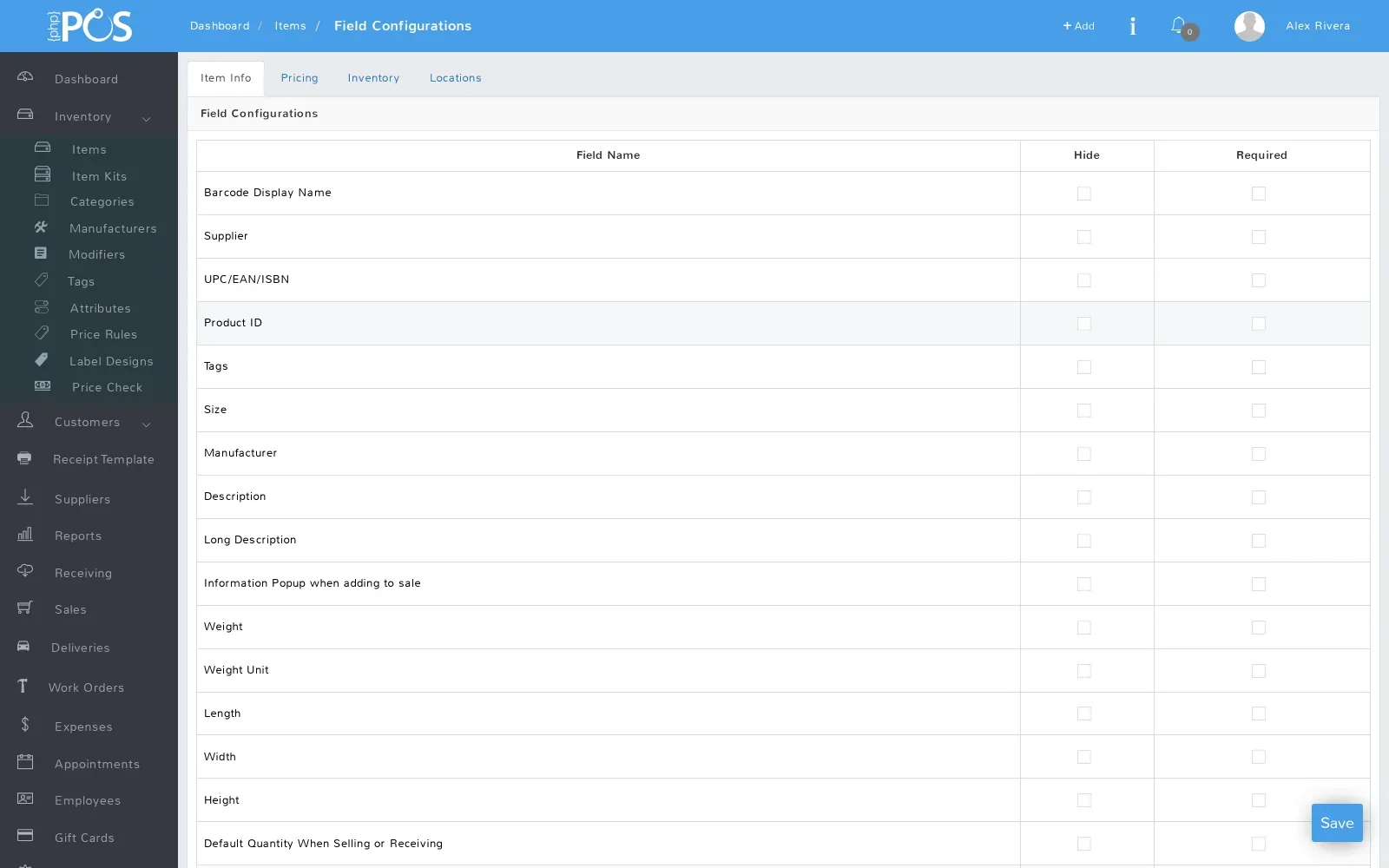
Most POS forms show every field any business could ever need. Yours does not need most of them, and probably needs one or two of them every single time. Each form field gets a Hide and a Required checkbox; the sale and receiving grids add column order on top.
A form with eight fields instead of forty is quicker to fill in and much harder to get wrong.
On the sale and receiving item grids in Store Config → Sales, drag a column by its handle to set the order it appears in, so the register shows what your cashiers read first.
Tick Required and the form refuses to save until the field is filled in, so the data you depend on is captured from the start.
Every module with a Field Configurations link on its list screen; invoices are configured separately per invoice type. The item grids on the sale and receiving screens are configured separately, in Store Config → Sales under Sale Items Details and Receiving Items Details.
Permission-aware: changing a module’s field settings requires permission for that module, so an employee without access to Employees or Suppliers can no longer change those forms.
Choose which columns appear on the sale screen’s item lines, and in what order, so the register shows what your cashiers actually use.
Configure the receiving grid on its own. A receiving clerk checking costs wants different columns from a cashier.
Field configurations cover the fields that already ship on those forms. Your own custom fields are configured in Custom Fields, where Required is set per field and per location.
Field configurations are store settings, so every employee gets the same form and nobody has to configure their own.
New staff see only the fields your store uses, so “which of these do I fill in?” stops being a question on day one.
Required fields close the gaps that make a report or an export frustrating six months later.
This is configuration inside the POS, not a customization project, so you can change it again next week when the workflow changes.
Related: Field configurations in the Help Center.
Start a free trial and set your forms up the way your store works, before the first item is even entered.